Quick answer: To activate your EPFO UAN, go to the Member e-Sewa portal (unifiedportal-mem.epfindia.gov.in), click "Activate UAN," enter your UAN or Aadhaar/PAN, your name, date of birth, and registered mobile number, then verify the OTP sent to that number. You can also activate it through the UMANG app using Aadhaar-based Face Authentication, which EPFO now promotes as the primary route for first-time activation. Activation itself is free, takes under five minutes once your details match EPFO's records, and is a one-time step — you use the same UAN for every job you hold afterward.
### 📌 Latest Official Update EPFO has been steadily shifting first-time UAN activation toward Aadhaar-based Face Authentication Technology (FAT) inside the UMANG app, reducing dependence on OTPs sent to a mobile number that may not always be updated with the employer. The Member e-Sewa portal's own "Activate UAN" option remains available and is still the more commonly used route for members whose mobile number is already correctly seeded. This box reflects the most recent confirmed rollout at the time of review — always check epfindia.gov.in or the UMANG app for the activation option currently available to you.
Reviewed by Manjeeta Raj, Founder of PaisaPilotAI. This guide is based on EPFO's own Member e-Sewa portal and UMANG app workflows — not on assumptions about how EPFO's backend verifies your details.
Information last verified: - UAN activation steps on the Member e-Sewa portal - UMANG Face Authentication activation flow - KYC seeding requirements - Common activation errors and fixes Last verified date: July 2026. EPFO periodically updates its digital activation flows — if a step described here doesn't match what you see on epfindia.gov.in or the UMANG app, treat the official channel as authoritative and this as a sign the process has since changed.
Why trust this guide? - Reviewed by PaisaPilotAI's founder before publication - Based solely on EPFO's own official activation channels — no third-party UAN "activation services" - Updated as EPFO changes its activation workflow
Already have your UAN active and just need your balance? → Check your EPF balance
Karthik Iyer, a 26-year-old design engineer in Chennai, joined his first job three weeks ago. HR mentioned his "UAN" twice during onboarding, gave him a 12-digit number on a printout, and told him to "activate it on the EPFO portal." Karthik had never heard of UAN activation before, assumed it was something HR would handle automatically, and moved on.
Two months later, he tried to check his PF balance using the missed-call number he saw online. Nothing happened — no reply SMS, no error message, just silence. The reason: his UAN was allotted, but never activated. Allotment and activation are two different things, and EPFO does not do the second one for you.
This guide walks through exactly how to activate a UAN — both official methods EPFO provides — what to do if your details don't match, and the specific errors that trip up first-time activators most often.
At a Glance
| Question | Quick Answer | Official Source |
|---|
| Where do I activate my UAN? | Member e-Sewa portal ("Activate UAN") or UMANG app (Face Authentication) | unifiedportal-mem.epfindia.gov.in |
| Is UAN activation free? | Yes — no fee for activation through any official EPFO channel | EPFO |
| What do I need before activating? | UAN or Aadhaar/PAN, full name as per EPFO records, date of birth, registered mobile number | EPFO |
| How long does activation take? | Under 5 minutes once details match and OTP/face-auth succeeds | — |
| Can I activate UAN without a registered mobile number? | Only via UMANG Face Authentication; OTP-based portal activation needs a working mobile number | UMANG |
| Is UAN activation mandatory? | Yes, in practice — most EPFO self-service features (balance check, KYC update, claims) require an activated UAN | EPFO |
| When should I contact EPFO? | If your name/DOB doesn't match Aadhaar records, or activation fails repeatedly with correct details | EPFO grievance portal |
What Is UAN Activation?
UAN activation is the one-time process of setting a password and verifying your identity against your Universal Account Number (UAN), which EPFO requires before you can use any self-service feature tied to your EPF account. Your UAN itself is generated automatically the moment your employer starts deducting PF from your salary — you do not apply for it. Activation is a separate step you must complete yourself.
Until you activate it, your UAN exists in EPFO's system but is effectively locked. You cannot log in to the Member e-Sewa portal, view your passbook, update KYC, or raise an online claim. Missed call and SMS balance checks will also fail, since both methods depend on your mobile number being linked to an activated UAN.
Sunita Reddy, an HR executive in Hyderabad, put it plainly to new hires every batch: "Your UAN is like a bank account number your employer opened for you. Activation is you setting up net banking for it. Nobody else can do that step on your behalf."
UAN Allotment vs UAN Activation — What's the Difference?
UAN allotment happens automatically when your employer registers you for EPF; UAN activation is a manual step you must complete yourself before the UAN becomes usable for any online service. This distinction causes more confusion than almost anything else in the EPF system.
| UAN Allotment | UAN Activation |
|---|
| Who does it | EPFO / your employer, automatically | You, manually |
| When it happens | As soon as PF deduction starts | Whenever you choose to complete it |
| What you get | A 12-digit number | Full access to portal, UMANG, balance checks, KYC, claims |
| Is it optional | No — happens regardless | Effectively mandatory for any EPFO self-service |
A common misconception is that receiving a UAN on your payslip or offer letter means it's already active. It is not. The number exists; the account is dormant until you activate it.
Who Should Care About This
This matters most if you:
- Are a first-time employee who just received PF deductions and has never touched the EPFO portal before.
- Changed jobs and were given a new UAN by mistake (should not happen under current rules, but occasionally does) or need to confirm your existing UAN carried over correctly.
- Tried a balance check via missed call or SMS and got no reply, which is one of the most common downstream symptoms of an inactive UAN.
- Need to file an online claim or update KYC and discovered you cannot log in.
- Are an HR or payroll professional who wants to guide new joiners through this step correctly instead of leaving it to trial and error.
If your UAN is already active and you only need to check your balance or download your passbook, this guide isn't the one you need — see How to Check EPF Balance instead.
Things Most Employees Don't Know
- Your UAN never changes across jobs. Every employer links your new PF account to the same UAN — you don't get a new one when you switch companies, and you should flag it with HR immediately if you're issued a second one.
- Activation and KYC seeding are two separate steps. You can activate your UAN with just your mobile number and basic details, but many self-service features (like online claims) additionally require Aadhaar, PAN, or bank details to be seeded and, in some cases, employer-approved.
- Your employer cannot activate your UAN for you. HR can generate it and register it with EPFO, but the activation step — setting a password, verifying identity — has to be done by you personally, since it involves your own mobile OTP or biometric face scan.
- A UAN can be allotted years before you ever activate it. If you've changed jobs multiple times without ever logging into the EPFO portal, your UAN has likely been sitting inactive since your very first job.
Eligibility and Prerequisites for UAN Activation
To activate your UAN, you need your 12-digit UAN or your Aadhaar/PAN number, your full name and date of birth exactly as recorded with EPFO, and access to the mobile number registered against your UAN (for OTP-based activation) or your Aadhaar-linked mobile number (for UMANG Face Authentication).
Before starting, gather:
- Your UAN (printed on recent payslips, or ask your HR/payroll team)
- Your Aadhaar number or PAN, whichever your employer used at the time of registration
- Your full name and date of birth exactly as they appear in EPFO's records — mismatches here are the single most common cause of activation failure
- Access to your registered mobile number to receive an OTP
If you don't know your UAN at all, your employer's HR/payroll team can retrieve it, since it's generated the moment your first PF contribution is processed — you don't need to "discover" it through any third-party search tool.
How to Activate UAN on the Member e-Sewa Portal
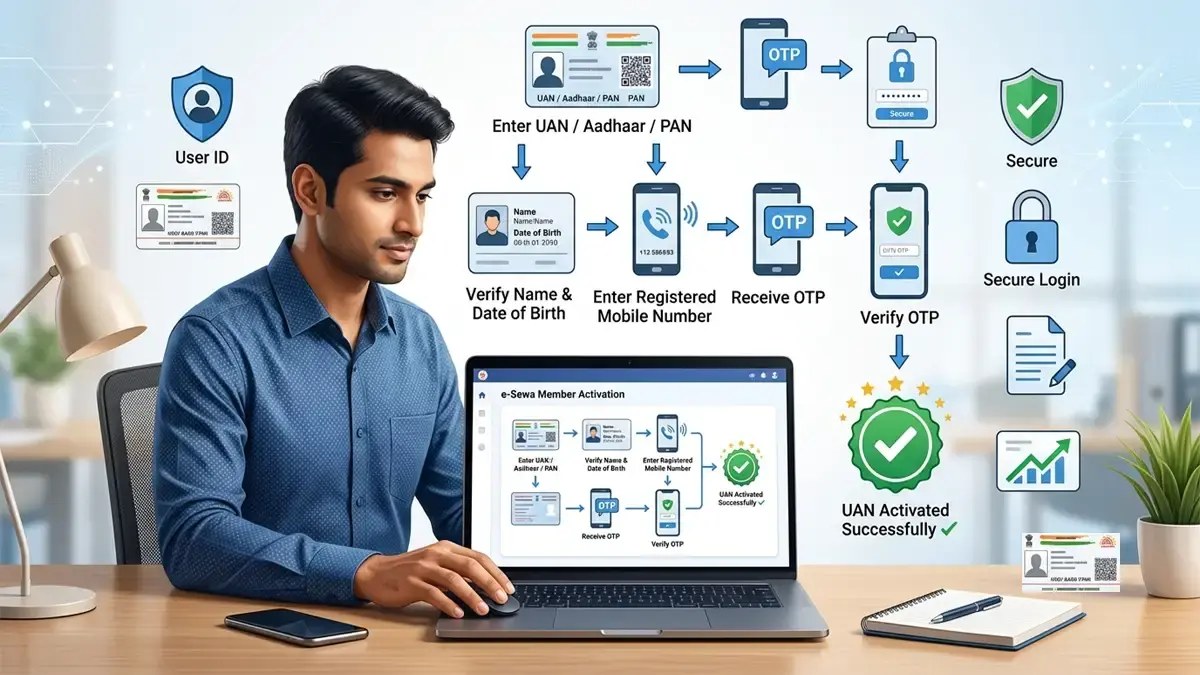
To activate your UAN on the portal, visit unifiedportal-mem.epfindia.gov.in, click "Activate UAN" under Important Links, enter your UAN, name, date of birth, Aadhaar or PAN, and registered mobile number, then verify the OTP sent to that number to set your password.
Step-by-Step: Portal UAN Activation
- Go to unifiedportal-mem.epfindia.gov.in.
- Under "Important Links" on the homepage, click "Activate UAN."
- Enter your UAN, along with your name, date of birth, and either your Aadhaar or PAN number — exactly as recorded with your employer.
- Enter your mobile number (this should be the one registered against your UAN) and the captcha shown.
- Click "Get Authorization Pin." EPFO sends an OTP to your mobile number.
- Enter the OTP and click "Validate OTP and Activate UAN."
- Once validated, you'll receive your password by SMS, or be prompted to create one — this is used for all future portal logins.
If your mobile number is not seeded to your UAN at all, this OTP will not arrive, and you will not be able to complete portal activation this way — see the UMANG Face Authentication method below, or contact your employer to update your mobile number first.
Verified as of July 2026: this activation flow at unifiedportal-mem.epfindia.gov.in remains EPFO's primary web-based activation route.
How to Activate UAN Using UMANG Face Authentication
To activate your UAN through UMANG, open the app, search for "EPFO," select "UAN Services Through Face Authentication," choose "UAN Activation," and complete a live facial scan matched against your Aadhaar photo. EPFO introduced this route specifically for members whose registered mobile number is outdated, lost, or was never correctly seeded — a very common situation for first-time employees whose employer used an old number by mistake.
Step-by-Step: UMANG Face Authentication Activation
- Download UMANG from the Google Play Store or Apple App Store (official publisher: NeGD / Government of India).
- Open the app and search for "EPFO" in the services list.
- Select "UAN Services Through Face Authentication" (sometimes labelled "UAN Allotment/Activation" depending on the app version).
- Choose "UAN Activation."
- Enter your UAN or Aadhaar number.
- Complete the live face scan when prompted — this is matched against your Aadhaar photo through UIDAI's Face Authentication Technology.
- On successful match, your UAN is activated, and you can proceed to set a password on the portal if one hasn't already been generated.
This method does not require a working mobile OTP, which makes it the more reliable option if your registered number has changed since your employer first submitted your details. It does, however, require your Aadhaar photo to be reasonably current and your device to have a working front camera.
Is Face Authentication safe? Yes — UMANG's Face Authentication uses UIDAI's own biometric matching infrastructure, the same system used for Aadhaar-based verification elsewhere in government services, and does not store your facial data within the UMANG app itself. As with any biometric verification, only complete this through the official UMANG app downloaded from an official app store.
UAN Activation vs KYC Seeding — Do You Need Both?
Activation gets you into the EPFO portal; KYC seeding — linking Aadhaar, PAN, and bank account to your UAN — is a separate step required before you can raise an online claim, transfer PF, or in some cases even view a complete passbook. Many members activate their UAN, log in successfully, and then get stuck later because KYC hasn't been done or approved.
| Step | What it unlocks | Who completes it |
|---|
| UAN activation | Portal/UMANG login, basic passbook view | You (self-service) |
| KYC seeding (Aadhaar, PAN, bank) | Online claims, PF transfer, full passbook detail | You, via portal upload |
| KYC approval | Final green light for claims to process | Employer digitally approves (except a few self-service exceptions) |
Note that even after you upload KYC documents, they typically need to show "Digitally approved by the employer" — a status of "Pending for Approval" is not sufficient for claim processing. If your KYC has been stuck in that state for a while, follow up directly with your employer's payroll team.
Worked Example
Priyanka Deshmukh joined a mid-sized IT company in Pune. Her offer letter listed her UAN, but nobody explained activation. Two months in, she tried the EPFO missed-call service and got nothing.
She checked her payslip, found her UAN, and went to unifiedportal-mem.epfindia.gov.in. She entered her UAN, name, date of birth, and PAN — but the OTP never arrived. It turned out her employer had registered an old mobile number from a previous employer's records, one she no longer used.
She switched to the UMANG app, selected UAN Services Through Face Authentication, completed a face scan against her Aadhaar, and her UAN activated within two minutes — no OTP required. She then updated her correct mobile number through the portal so future OTP-based logins would work normally.
Common UAN Activation Errors and Fixes
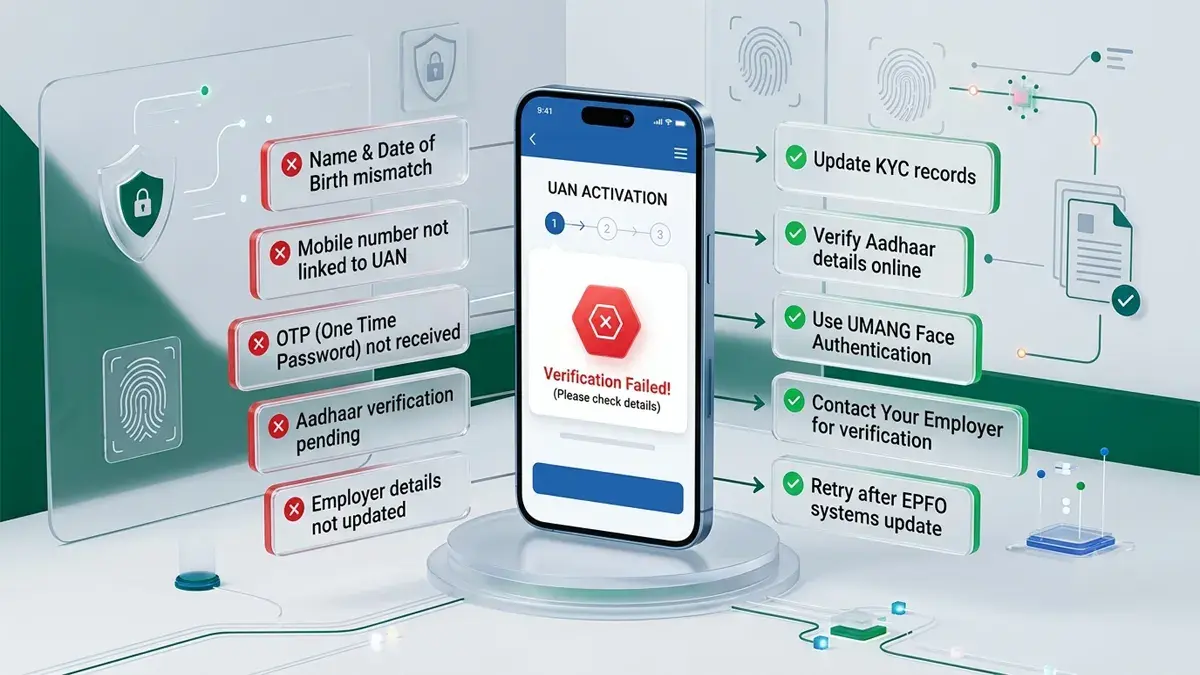
The most common UAN activation errors are name/date-of-birth mismatches with Aadhaar, an unregistered or outdated mobile number, and attempting activation before the employer has actually submitted the UAN to EPFO's system.
| Problem | Likely Reason | Recommended Action |
|---|
| "Details do not match" error | Name or DOB entered doesn't exactly match EPFO's record (often a spelling or formatting difference from Aadhaar) | Check your name/DOB exactly as printed in your EPFO passbook or ask HR to confirm what was submitted; correct via KYC update if genuinely wrong |
| OTP never arrives | Mobile number not seeded to UAN, or an old/incorrect number was submitted by employer | Use UMANG Face Authentication instead, or ask HR to update your registered mobile number first |
| "UAN not found" | Employer hasn't yet submitted your UAN registration to EPFO, or you're using the wrong number | Confirm with HR/payroll that your UAN has been filed; wait a few payroll cycles if you're a very recent joiner |
| Face Authentication fails repeatedly | Poor lighting, outdated Aadhaar photo, or camera/app issue | Retry in good lighting; if your Aadhaar photo is very outdated, consider updating it via UIDAI first |
| Activated but portal login still fails | Password not set correctly after activation, or session/browser issue | Use "Forgot Password" on the portal rather than repeating activation, since UAN activation is a one-time step |
| Multiple UANs showing for one person | Employer allotted a new UAN by mistake instead of linking to the existing one | Raise this with EPFO or your current employer immediately — this needs to be corrected, not worked around |
Government vs Private Sector: Any Difference in UAN Activation?
The UAN activation process itself is identical for government and private-sector EPF members — the same portal, the same UMANG flow, the same OTP or Face Authentication steps apply regardless of employer type. What can differ is how quickly and accurately the employer submits your initial registration details to EPFO.
- Private-sector employers typically process UAN registration through payroll software integrated with EPFO's Electronic Challan cum Return (ECR) filing, which is usually fast but occasionally carries over outdated contact details from a previous role if not manually corrected.
- Government and PSU employers may have separate internal HR processes for EPF registration, which can occasionally take longer to reflect in EPFO's system, though the activation steps you personally perform remain the same once your UAN is live.
If you're unsure which category applies to your specific employer's process, your payroll or HR department is the correct point of contact — EPFO's activation systems themselves don't distinguish between the two.
Common Mistakes
- Assuming HR activates your UAN for you. HR registers and generates it; you must personally complete activation, since it requires your own OTP or biometric verification.
- Retrying portal activation repeatedly after it already succeeded. If your UAN is already active and you're just having trouble logging in, use "Forgot Password" instead of attempting activation again.
- Entering your name differently from how it appears in EPFO's records. Nicknames, initials, or a different name order than what your employer submitted will trigger a mismatch error even if it's technically "you."
- Ignoring KYC seeding after activation. Activation alone doesn't unlock claims or transfers — KYC still needs to be uploaded and employer-approved separately.
- Using an outdated mobile number without updating it. If OTPs consistently fail, the fix is updating your registered number through your employer, not repeatedly retrying the same failing OTP request.
Common Myths
Myth: "My UAN is automatically active once I receive it."
False. Allotment and activation are separate steps. You must complete activation yourself before any EPFO self-service feature works.
Myth: "I need to pay a fee to activate my UAN."
False. UAN activation is entirely free through EPFO's own portal and UMANG app. Any website or agent charging a fee for "UAN activation service" is not an official EPFO channel.
Myth: "I get a new UAN every time I change jobs."
False. Your UAN is permanent for life. Each new employer links your new PF account to your existing UAN — you should never need a second one.
Myth: "If OTP-based activation fails, there's no other way to activate my UAN."
False. UMANG's Face Authentication route exists specifically for this situation and doesn't depend on receiving an OTP at all.
Expert Tips
- Activate your UAN in your first week on a new job, not when you first need to check a balance or file a claim — doing it early avoids discovering an OTP or mismatch problem right when you actually need urgent access.
- Cross-check your name and date of birth against your Aadhaar card before attempting activation, since this single mismatch causes more failed activation attempts than any other issue.
- Keep your registered mobile number updated every time you change your number, not just when activation fails — this same number is used for balance-check SMS, missed-call replies, and future OTP logins.
- If your employer used an old number from a previous job, don't wait for HR to notice — proactively confirm your correct number is what's submitted for your current UAN record.
Practical Checklist
Before you start UAN activation:
- ○Confirm your 12-digit UAN with your HR/payroll team (or find it on a recent payslip).
- ○Have your Aadhaar number or PAN ready — whichever your employer used during registration.
- ○Confirm your name and date of birth exactly as they'll appear in EPFO's records.
- ○Confirm which mobile number is registered against your UAN, and whether you still have access to it.
- ○If your mobile number is outdated or you're unsure, plan to use UMANG Face Authentication instead of the OTP route.
- ○After activation, set/confirm your portal password and log in once to verify access.
- ○Follow up separately on KYC seeding (Aadhaar, PAN, bank account) if you plan to raise a claim or transfer PF later.
Contact EPFO directly, or escalate through your employer, if your name/date-of-birth genuinely doesn't match Aadhaar records despite being correct, if activation fails repeatedly through both the portal and UMANG, or if you discover a second UAN has been issued to you by mistake.
Do not keep retrying the same failing method indefinitely if:
- Your details are confirmed correct on both your Aadhaar and your EPFO passbook, yet activation keeps failing.
- You've tried both the portal OTP route and UMANG Face Authentication, and neither works.
- You suspect a data entry error on your employer's side (wrong DOB, misspelled name) that only they can correct via EPFO's employer portal.
- You've been issued multiple UANs and need EPFO to merge or correct your records.
In these cases, raise a grievance through the EPFO Member e-Sewa portal's grievance section, or approach your jurisdictional EPFO regional office directly, rather than continuing to retry a process that isn't the actual point of failure.
If you're trying to check your balance and it's your activation status specifically holding you back, our guide on How to Check EPF Balance explains exactly which methods require an active UAN and which troubleshooting steps apply once you're through this stage. If your concern is a rejected withdrawal claim rather than activation itself, see EPF Claim Rejected Reasons for the specific causes and fixes.
Frequently Asked Questions
What is UAN activation?
UAN activation is the one-time process of verifying your identity and setting a password against your Universal Account Number, required before you can use any EPFO self-service feature like the portal, UMANG app, or balance-check services.
How do I activate my UAN online?
Visit unifiedportal-mem.epfindia.gov.in, click "Activate UAN," enter your UAN, name, date of birth, Aadhaar or PAN, and registered mobile number, then verify the OTP sent to that number.
Is UAN activation free?
Yes. Activation through EPFO's own portal or the UMANG app is completely free. Any third party charging a fee for this is not an official EPFO channel.
Can I activate my UAN without a registered mobile number?
Yes, through the UMANG app's Face Authentication route, which verifies your identity using a live facial scan matched against your Aadhaar photo instead of an OTP.
What documents do I need to activate my UAN?
Your UAN (or Aadhaar/PAN), your full name and date of birth as recorded with EPFO, and access to your registered mobile number for OTP verification.
Why is my UAN activation OTP not arriving?
Usually because your mobile number isn't correctly seeded to your UAN, or an outdated number was submitted by your employer. Use UMANG Face Authentication as an alternative, or ask HR to update your registered number.
Do I get a new UAN when I change jobs?
No. Your UAN is permanent and stays the same across every employer. Each new employer links your new PF account to your existing UAN.
What is the difference between UAN allotment and UAN activation?
Allotment happens automatically when your employer registers you for EPF; activation is a manual step you must complete yourself before the UAN becomes usable.
Can my employer activate my UAN for me?
No. Your employer can generate and register your UAN, but activation requires your own OTP verification or biometric face scan, which only you can complete.
Is UAN activation mandatory?
Practically, yes — you cannot check your balance through most channels, log into the portal, update KYC, or file an online claim without an activated UAN.
Why does it say "details do not match" when I try to activate my UAN?
This usually means your entered name or date of birth doesn't exactly match what EPFO has on record, often due to a spelling difference from your Aadhaar. Verify against your EPFO passbook or ask HR to confirm the submitted details.
What is UMANG Face Authentication for UAN activation?
It's an alternative activation method that verifies your identity using a live facial scan matched against your Aadhaar photo through UIDAI's biometric system, used when OTP-based activation isn't possible.
Is UMANG Face Authentication safe to use?
Yes. It uses UIDAI's own biometric matching infrastructure and does not store your facial data within the UMANG app, provided you download UMANG only from an official app store.
How long does UAN activation take?
Typically under five minutes once your details match EPFO's records and either OTP verification or Face Authentication succeeds.
What happens after I activate my UAN?
You gain access to the Member e-Sewa portal and UMANG app for balance checks, passbook viewing, and — once KYC is separately seeded and approved — online claims and PF transfers.
Can I activate my UAN before my first salary is credited?
Usually not — your UAN needs to actually exist in EPFO's system first, which typically happens after your employer's first PF remittance for you is processed.
I have two UANs — what should I do?
Report this to your current employer or EPFO immediately. Having multiple UANs is an error that needs correction, not something to work around by using one over the other.
Does UAN activation require Aadhaar mandatorily?
Most activation routes accept either Aadhaar or PAN at the initial step, but Aadhaar becomes effectively necessary if you need to use UMANG's Face Authentication method or later seed KYC for claims.
My UAN shows as activated but I still can't log in — why?
This is usually a password issue rather than an activation issue. Use the "Forgot Password" option on the portal rather than attempting to reactivate an already-active UAN.
Where can I find my UAN if I don't know it?
Ask your employer's HR or payroll team — it's generated as soon as your first PF contribution is processed and is often printed on recent payslips.
Does UAN activation affect my PF interest or balance?
No. Activation only affects your ability to access and manage your account online — it doesn't change your contribution amount or the interest credited to your balance.
Snippet Blocks — Direct Answers
How to activate UAN
Visit unifiedportal-mem.epfindia.gov.in, click "Activate UAN," enter your UAN, name, date of birth, Aadhaar/PAN, and registered mobile number, then verify the OTP to complete activation.
UAN activation without mobile number
Use the UMANG app's Face Authentication route — search "EPFO," select "UAN Services Through Face Authentication," and complete a live facial scan matched against your Aadhaar photo instead of an OTP.
UAN activation fee
UAN activation is completely free through EPFO's own portal and UMANG app. No official EPFO channel charges a fee for this.
UAN allotment vs activation
Allotment happens automatically when your employer registers your PF account; activation is a manual step you complete yourself before the UAN becomes usable for any online service.
Official Sources and References
This guide is built entirely from EPFO's own activation workflows on the Member e-Sewa portal and UMANG app — not third-party summaries — with any process detail that may vary flagged rather than presented as universal. Regulations and digital processes can change; always confirm current steps against EPFO's own channels.
- EPFO official website — epfindia.gov.in — the source for UAN-related circulars and process updates.
- EPFO Member e-Sewa portal — unifiedportal-mem.epfindia.gov.in — used directly for portal-based UAN activation, password setup, and KYC management.
- UMANG application — the official Government of India app (published by NeGD) for Face Authentication–based UAN activation and other EPFO services.
- Ministry of Labour and Employment — the parent ministry overseeing EPFO's member-services policies, including UAN-related processes.
- UIDAI — the authority behind the Aadhaar-based biometric matching used in UMANG's Face Authentication Technology.
If any step, screen, or requirement described here has changed by the time you read this, treat EPFO's own official channels as authoritative over this article.
Key Takeaways
- UAN allotment is automatic; UAN activation is a manual step only you can complete.
- Activate via the Member e-Sewa portal (OTP-based) or the UMANG app's Face Authentication (no OTP required).
- Activation is completely free and typically takes under five minutes with correct details.
- Name/DOB mismatches and an outdated mobile number are the two most common causes of activation failure.
- Activation alone doesn't unlock claims or transfers — KYC seeding and employer approval are separate steps required afterward.
- Your UAN is permanent for life — you never need a new one when you change jobs.
If you've just activated your UAN and want to check your balance right away, see How to Check EPF Balance for all four official methods. If you're planning ahead for a withdrawal or transfer, EPF Withdrawal Rules covers eligibility and the claim process, and EPF Claim Rejected Reasons explains what to do if a claim doesn't go through. To understand how EPFO's broader digital reforms affect your account going forward, read EPFO 3.0 Explained. Once your account is active and growing, the EPF Calculator on PaisaPilotAI can help you project your retirement corpus based on your current contributions.
You can explore more salary and tax tools on the PaisaPilotAI homepage.
Disclaimer: This article is for general informational purposes only and does not constitute financial or legal advice. EPFO's UAN activation process, screens, and requirements are set and changed by EPFO and the Ministry of Labour and Employment, and can vary from the steps described here in future updates. Always verify current procedures directly at epfindia.gov.in or through the official UMANG app before relying on any step described here. Last updated and reviewed: July 2026.